


 Log in




Avandrive Storage and Pro accounts allow users to share unlimited files with friends, family and colleagues in just a few clicks. You can start sharing files privately or publicly through the Avandrive Storage on your PC or Mac, by simply following our step-by-step instructions below:
Share Privately
Share files in private with the people of your choice even if they don’t have Avandrive. Simply go to your Avandrive Storage on your PC or Mac, right click on the file you want to share, click on “Avandrive” and then select the “Web Sharing” option.
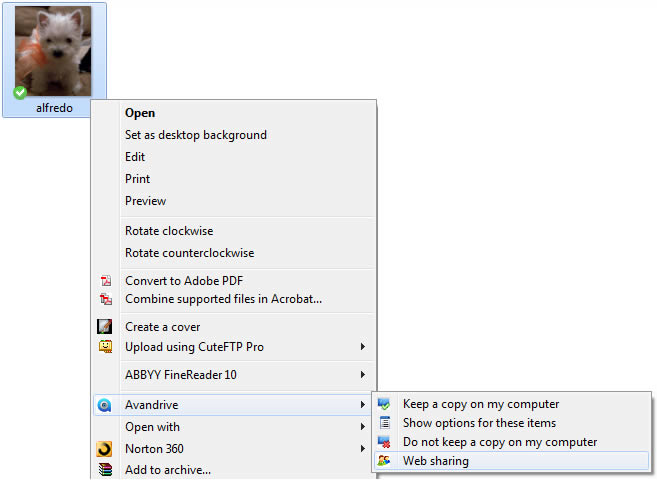
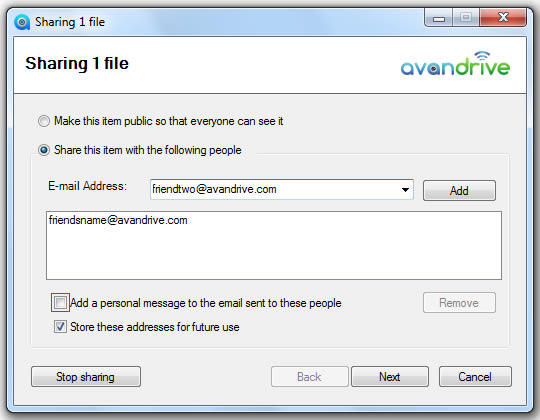
Then just select the option “Share this item with the following people”, type the email address of the person or people you want to send the file/files and click “Add”. Once you have typed in all the recipient’s email addresses, choose if you wish to “Add a personal message to the email sent to these people” by ticking the box under the table with your email addresses. Then simply press “Next” and a secure link will be sent to their email inboxes.
Share Publicly
You can share you file/files publicly in a very similar way to private sharing. Simply go to your Avandrive Storage on your PC or Mac, right click the file you wish to share, click “Avandrive” and then select “Web Sharing”.
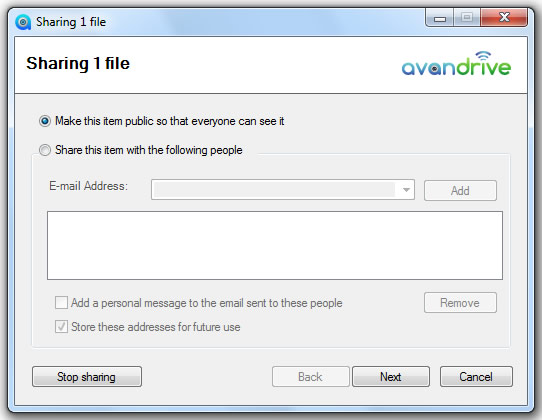
Then you select the “Make this item public so that everyone can see it” option and click “Next”.
The item will then be placed in your open web sharing folder. Sending the web address to your favorite people will enable them to view every file which has been placed in the public sharing folder.
For more information about Avandrive Storage features click here