

 Log in



Avandrive currently stores more image files in the cloud than any other file type. Most of you love to take photos and want to back them up, edit them, and securely access them from anywhere.
Today we have created a guide for iPhoto on Mac OS X. It will show you how to share your entire iPhoto library between all of your computers, regardless of their location.
How to create a new library:
1) Quit iPhoto, if running.
2) Hold down the Option key on your keyboard as you open iPhoto.
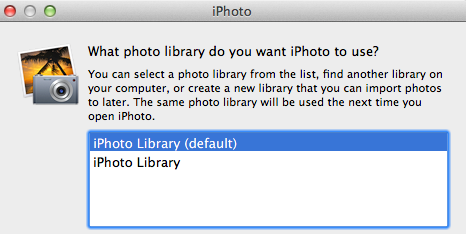
3) Within the Window, click Create New.
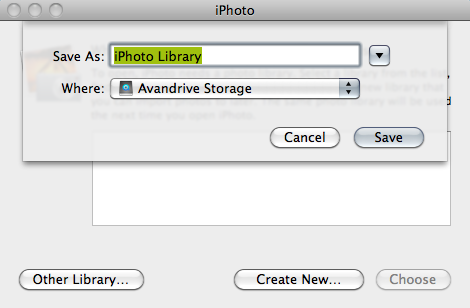
4) Enter the name of your new library.
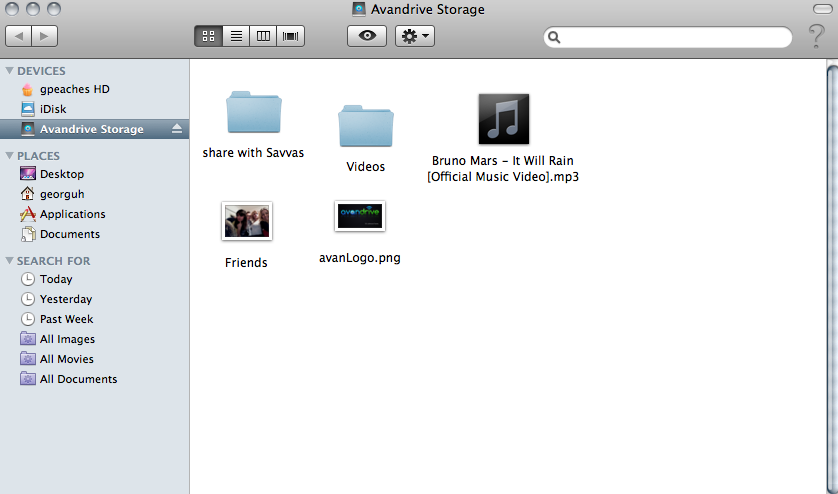
5) Select Avandrive Storage as the destination.
6) Click on Save
The iPhoto library will appear empty once created. Any photos you import are added to this library.
Moving photos to your Avandrive Storage iphoto library.
IF you have photos already stored on your local hardrive library but you wish to have all your photos stored within the new Avandrive library, then simply follow these steps:
Export
1. Open iPhoto.
2. Select the photos you wish to export.
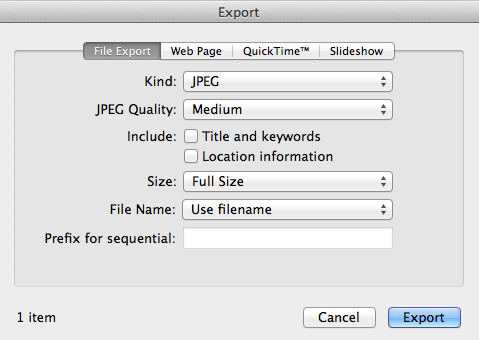
3. Click on File, Export.
4. Once your happy with your settings, click Export.
This will not delete your photos from the library.
Switch Library
1. Quit iPhoto.
2. Hold down the Option key on your keyboard as you open iPhoto.
3. Select the library created within you Avandrive Storage.
4. Click Choose.
You can then continue to import your photos into the Avandrive Storage library.